 Airnode Hosting
Linux VPS
SSH Access
Warning
You need an SSH client to connect. This guide uses PuTTY.
- Download and install PuTTY.
- Open PuTTY after installation.
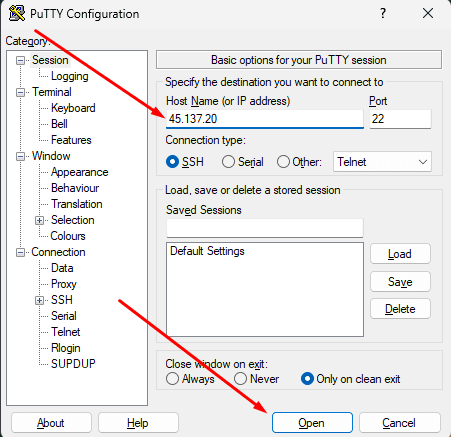
- In the PuTTY window, enter your VPS IP address in the "Host Name" field.
- You can find this IP address in the email you received after purchasing your VPS.
- Click Open to continue.
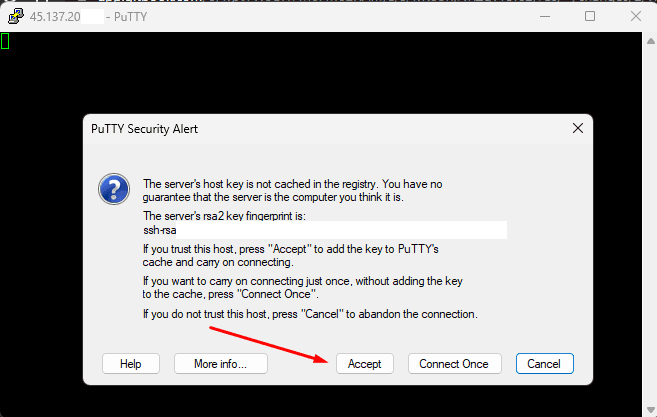
- When prompted with a security alert, click Accept to trust the host.
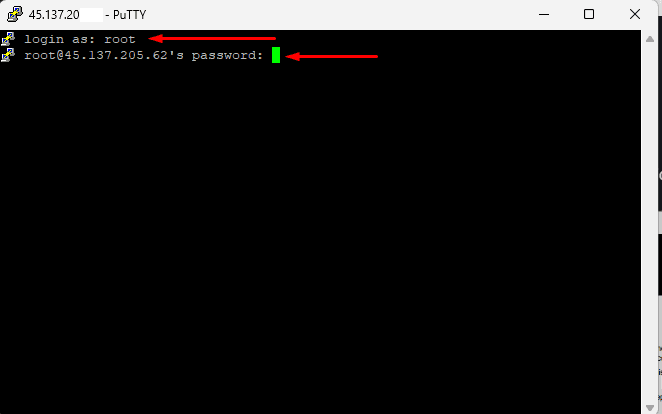
- Type
rootas the username and press Enter. - Enter the root password from your email.
Password Entry
When typing the password, nothing will be visible. To paste the password, right-click once and press Enter.
Success
You should now be connected to your VPS via SSH.
If you need help, our staff is ready to assist:
Contact us.